
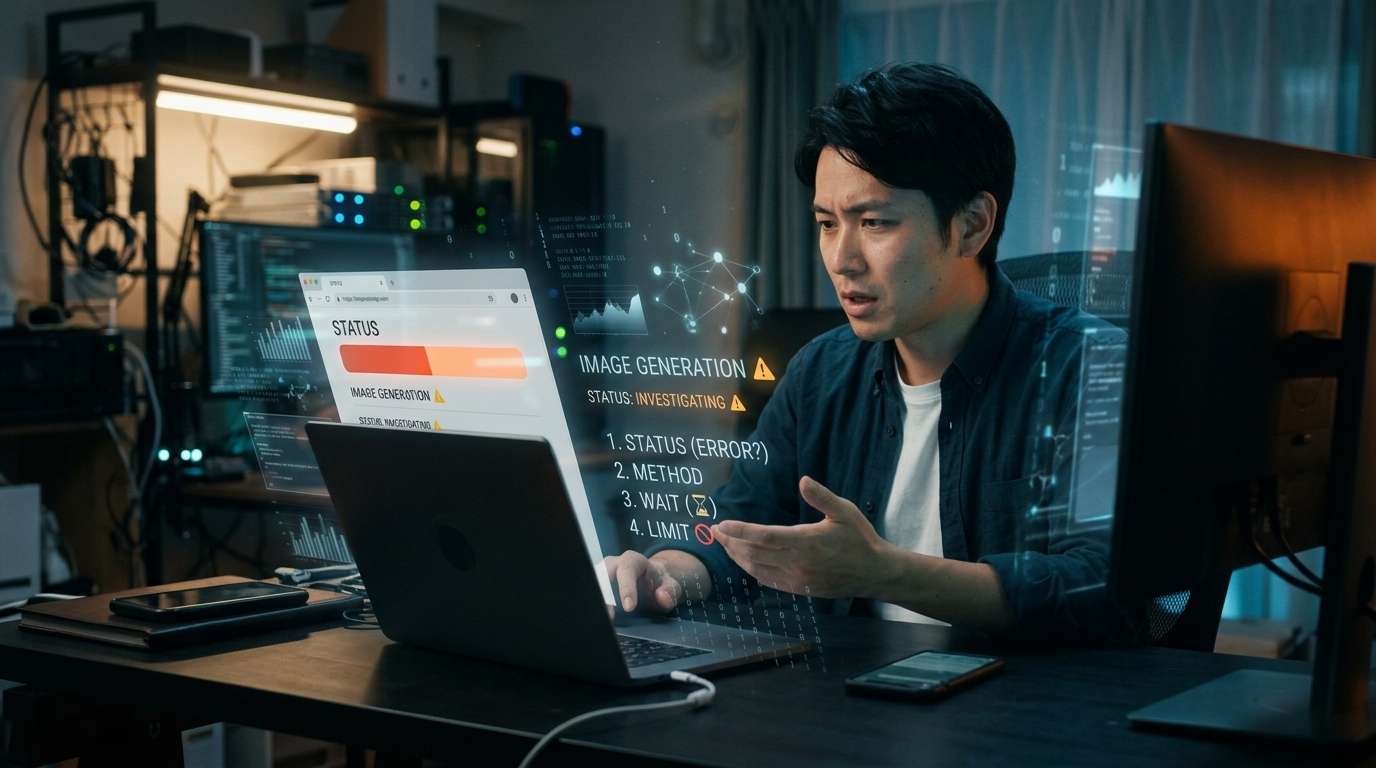
When image generation isn’t working properly in ChatGPT, there are a few things to check before suspecting your device or settings.
OpenAI publishes image-generation service status on its status page, and its help center also explains how to create images, how long processing can take, and the limits on the Free plan. This article walks through what to check, in order: outages, where to start, wait times, and usage limits.
Check service status before looking at your own device
No image appears. In that situation, it’s tempting to start by troubleshooting your own device, such as refreshing the browser or reinstalling the app. But if image generation itself is unstable, changing your settings won’t get you anywhere.
OpenAI’s status page lists the service status for “Image Generation.” At the time of this check, an issue related to image generation was displayed. Individual incident pages and past incident histories are also available, so you can look up what happened and when.
However, this status changes constantly. Be careful not to mistake a record of a past outage for an ongoing one. Make a habit of checking the date and time shown along with the status to avoid unnecessary trial and error.
Make sure you’re using the right way to create an image
If there are no service issues, the next step is to check how you’re using the feature. The official help center says you can create images in ChatGPT either by asking for one in a conversation or by selecting “Images” from the menu.
ChatGPT Images is available on all plans and works on the web, iOS, and Android. It seems unlikely that you can’t use it because of your plan or device. First, check that you’re opening the feature from the right place in the screen you’re currently using.
Image generation can take a few minutes
If you’re in the right place but the screen seems unresponsive, waiting a little may help. According to the official FAQ, image generation can take a few minutes, depending on the complexity of the request.
It can be tempting to resubmit repeatedly when the response seems slow, but try to resist. The image may appear if you simply wait for processing to finish.
Free plan users should watch for a separate usage limit
If you’re on the Free plan, check your usage limits as well. Image generation has a separate limit from regular text chats. When you reach that limit, ChatGPT will notify you, and you’ll need to wait a while before using the feature again.
You may still be able to chat normally by text but find that you can’t generate images. In that case, the separate limit may be the reason. The most reliable way to check the specific number of uses is to look at the notification on your screen.
A quick-reference table
Here’s a breakdown of what to check and what to do next.
【Quick Reference: What to Check】
1. Outages / “Image Generation” on OpenAI’s status page / If an issue is shown, wait for service to be restored
2. Where to start creating an image / Ask in a conversation or select “Images” from the menu / Select the correct feature
3. Generation time / Processing indicator / Wait a few minutes; don’t keep resubmitting
4. Usage limits / Notification shown on the Free plan / Wait a while before trying again
An inability to generate images isn’t always caused by a mistake on your end. Checking from the broader service status inward can help you identify the cause without getting sidetracked.


Comments